מדריך בלוקי שדות
שדה חתימה
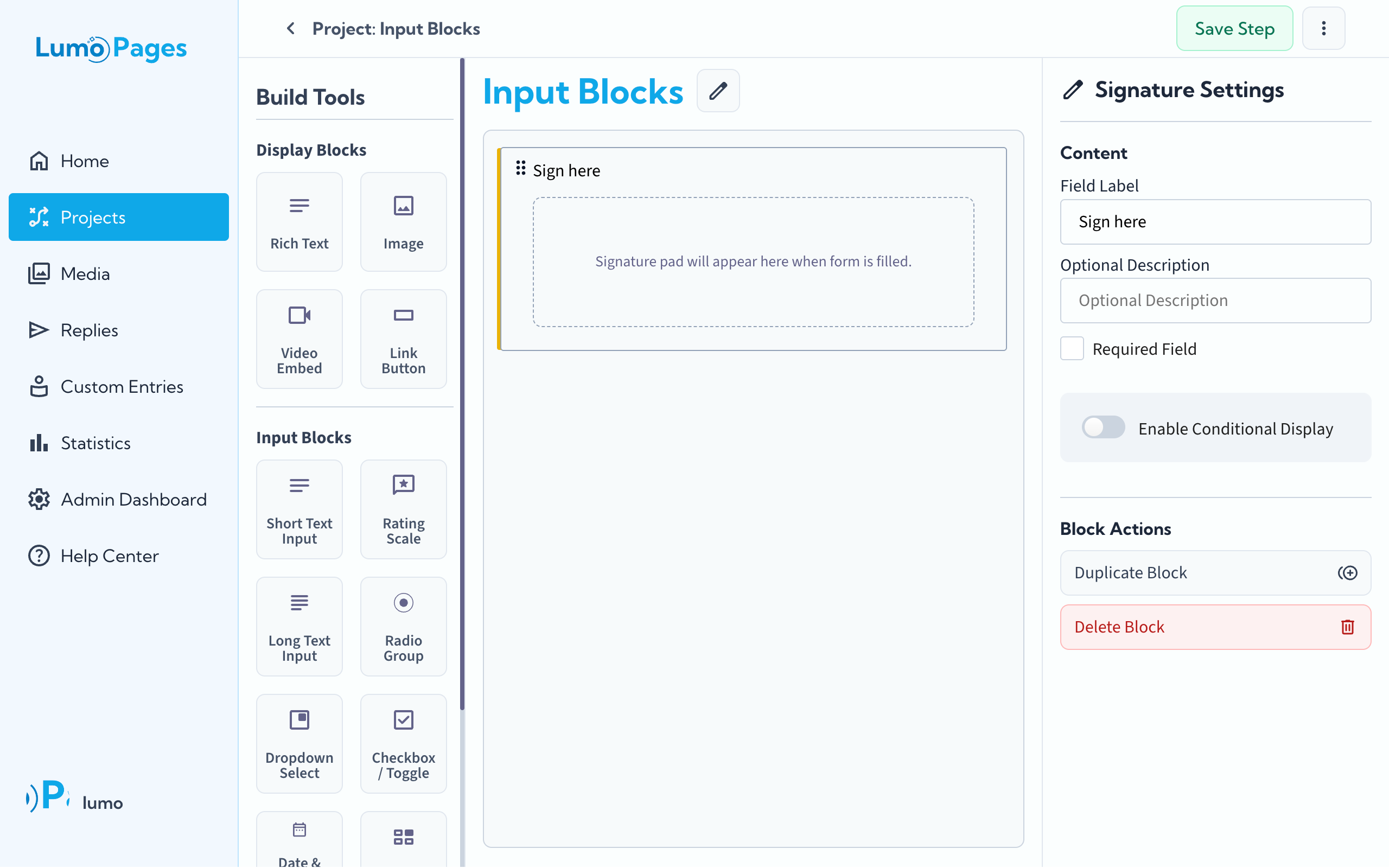
באינטראקציות מקצועיות ואישיות רבות, חתימה היא החותם הסופי של הסכמה או אימות. LumoPages מציעה כעת בלוק Signature, המאפשר לכם לאסוף חתימות דיגיטליות בכתב יד ישירות בתוך הטפסים שלכם. תכונה זו מושלמת לחוזים, טפסי הסכמה או אישורי מסירה.
מדריך זה ילווה אתכם כיצד להוסיף ולהגדיר את בלוק Signature ב-Lumo שלכם.
למה להשתמש בבלוק Signature?
- משפטי ומקצועי: מוסיף שכבה של הסכמה פורמלית למסמכים וחוזים דיגיטליים.
- אחריות: מבטיח שהאדם ששולח את הטופס לוקח אחריות על המידע שסיפק.
- חוויה חלקה: משתמשים יכולים לחתום בצורה טבעית באמצעות עכבר במחשב שולחני או באצבע/סטיילוס במכשירים ניידים.
- נתוני אבטחה: לאימות, Lumo רושם אוטומטית את כתובת ה-IP, התאריך והשעה של החתימה.
שלב אחר שלב: הוספת שדה חתימה
הגדירו הגדרות חתימה: לחצו על הבלוק כדי לפתוח את לוח ההגדרות מימין. כאן תוכלו להתאים אישית:
- תווית שדה: הזינו את הטקסט שמופיע מעל לוח החתימה (למשל, "אנא חתמו כאן" או "החתימה שלכם").
- תיאור אופציונלי: ספקו הקשר או הוראות נוספות למשתמש.
- שדה חובה: הפעילו כדי להבטיח שלא ניתן לשלוח את הטופס ללא חתימה.
חוויית משתמש ואימות
כאשר משתמש צופה ב-Lumo הפעיל שלכם, הוא יראה לוח חתימה נקי. לאחר שיצייר את החתימה, יש לו אפשרות לנקות אותה (דרך סמל ה-X) אם הוא רוצה לנסות שוב.
הערה
מתחת ללוח החתימה, Lumo מציג הודעה קצרה המודיעה למשתמש שכתובת ה-IP וחותמת הזמן נאספים כדי לאמת את החתימה הדיגיטלית, ומבטיח שקיפות ותאימות לסטנדרטי פרטיות.