מדריך בלוקי שדות
שדות בחירה בכפתור
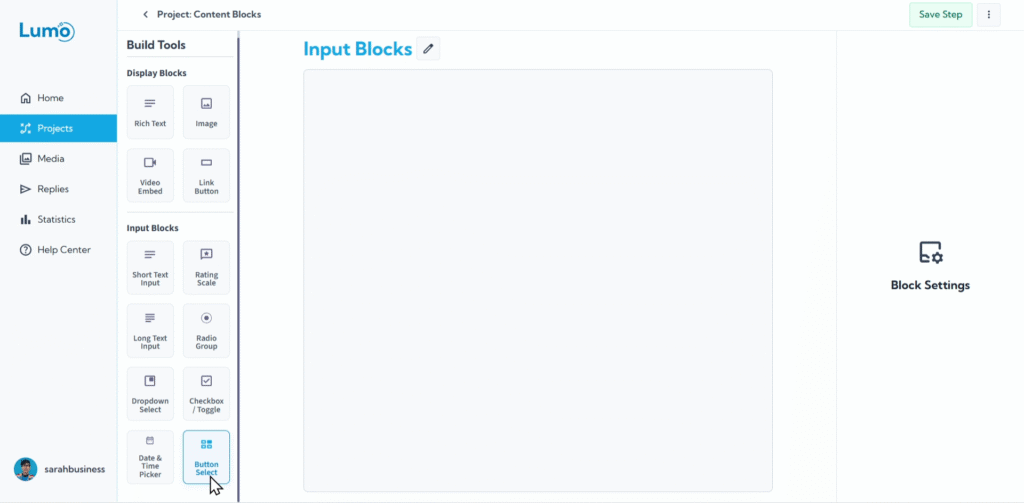
כשאתם צריכים שמשתמשים יבחרו מקבוצה ברורה ומוגדרת מראש של אפשרויות, שדה Button Select מציע דרך ויזואלית וקלה לשימוש ללכוד את הבחירה שלהם. Field Block זה מציג כל אפשרות ככפתור נפרד, ומאפשר למשתמשים פשוט ללחוץ על הבחירה שלהם. הוא מצוין לטפסים שבהם בהירות וקלות אינטראקציה הם מפתח.
מדריך זה יסביר כיצד להגדיר שדות Button Select ב-Lumo שלכם.
מהו שדה Button Select?
שדה Button Select מציג רשימת אפשרויות ככפתורים נפרדים ולחיצים. משתמשים מתקשרים פשוט על ידי לחיצה על הכפתור המתאים לבחירתם. הוא משמש לעיתים קרובות למספר קטן עד בינוני של אפשרויות שבו הבחנה ויזואלית מועילה.
שלב אחר שלב: הוספת שדה Button Select
הגדירו את הגדרות הליבה של השדה: לאחר הוספת ה-block, תגדירו את המאפיינים החיוניים שלו:
Field Label: זו השאלה או ההוראה המוצגת למשתמש.
Selection Type: החליטו כמה אפשרויות משתמשים יכולים לבחור:
- Single Choice: משתמשים יכולים לבחור רק אפשרות אחת מהכפתורים המוצגים.
- Multiple Choice: משתמשים יכולים לבחור אפשרות אחת או יותר מהכפתורים המוצגים.
ערכו את התוכן של כל אפשרות: כאן תגדירו את הבחירות הספציפיות שיופיעו ככפתורים.
- לחצו על "Add Option" כדי ליצור כפתור חדש.
- הזינו את המלל לכל כפתור.
- תוכלו להוסיף כמה אפשרויות שתצטרכו.
שמירת השינויים
לאחר הגדרת שדה Button Select, זכרו לשמור את השינויים ידנית על ידי לחיצה על כפתור "Save" בעורך.
אם תנסו לצאת מהעורך מבלי לשמור, LumoPages תזכיר לכם לשמור את העבודה. תמיד שימו לב להודעות אלה כדי להימנע מאובדן התקדמות, במיוחד אם ה-Lumo שלכם חי!
שדות Button Select הם דרך מצוינת להפוך בחירות לברורות ומעניינות למשתמשים, במיוחד כשיש לכם מספר מוגבל של אפשרויות מובחנות. הם מספקים אינטראקציה מבוססת לחיצה מספקת שמשפרת את חוויית המשתמש.