איסוף וניהול נתונים
הגדרת התראות דוא״ל לתגובות חדשות
מדיניות הפרטיות של LumoPages מכסה נתונים בפלטפורמה שלנו. כאשר אתם מייצאים נתונים, ההגנה והתאימות שלהם הופכות לאחריותכם. ודאו תמיד שהפרקטיקות שלכם עומדות בסטנדרטים משפטיים ואתיים. קראו עוד על פרטיות נתונים ותאימות ייצוא.
להישאר מעודכנים לגבי הגשות חדשות ל-Lumos שלכם חיוני למעקבים בזמן ולניהול נתונים יעיל. LumoPages מאפשרת לכם להגדיר התראות אימייל, ולהבטיח שתקבלו התראה ישירות בתיבת הדואר שלכם בכל פעם שמוגשת תגובה חדשה. כלומר, לעולם לא תפספסו משוב, בקשות או פניות חשובות.
מדריך זה ילווה אתכם כיצד להגדיר התראות אימייל עבור ה-Lumos שלכם.
למה להגדיר התראות אימייל?
- מודעות בזמן אמת: קבלו התראות מיידיות על הגשות חדשות, המאפשרות פעולה מהירה.
- מעקב מיידי: הגיבו לפניות או טפלו במשוב ללא עיכוב.
- יעילות: הימנעו מבדיקה מתמדת של Inbox של LumoPages לנתונים חדשים.
- הישארו מעודכנים: עקבו אחר פעילות הטופס גם כשאינכם מחוברים לפלטפורמה.
שלב אחר שלב: הגדרת התראות אימייל
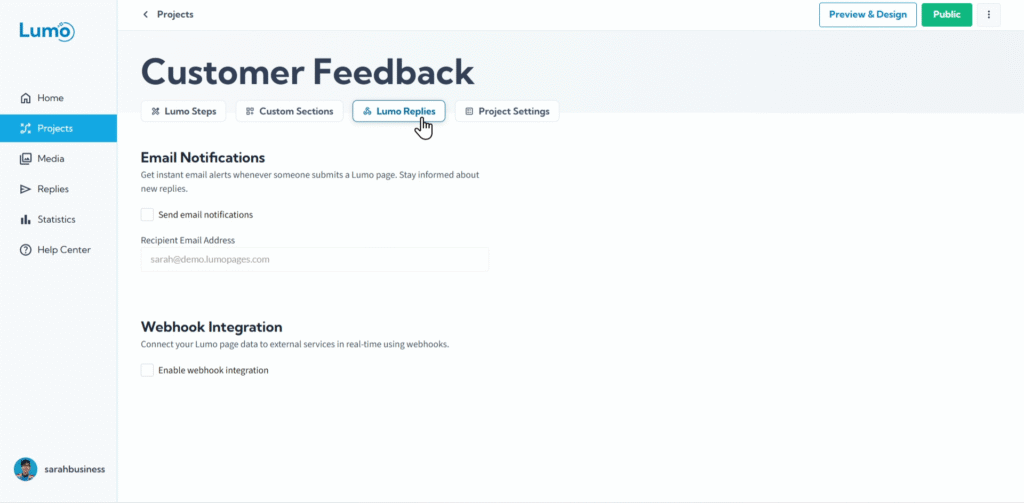
הפעילו התראות אימייל. תמצאו תיבת סימון להפעלת התראות אימייל על תגובות חדשות.
- סמנו את התיבה כדי להפעיל.
- לחצו על "Apply Changes".
שמירת השינויים שלכם
לאחר הגדרת התראות האימייל, חשוב לשמור ידנית את השינויים בפרויקט. חפשו את כפתור "Save" הבולט בעורך ולחצו עליו.
אם תנסו לנווט מחוץ לעורך לאחר ביצוע שינויים ללא שמירה, LumoPages תזכיר לכם לשמור את העבודה. זה חיוני כדי להבטיח שהגדרות ההתראות שלכם פעילות.
הגדרת התראות אימייל היא דרך פשוטה אך עוצמתית להישאר מחוברים ל-Lumos שלכם ולנתונים היקרים שהם אוספים. היא מספקת מודעות מיידית, ומאפשרת לכם להגיב במהירות וביעילות להגשות חדשות.