אזורים מותאמים אישית גלובליים
הגדרת כותרת עליונה לפרויקט
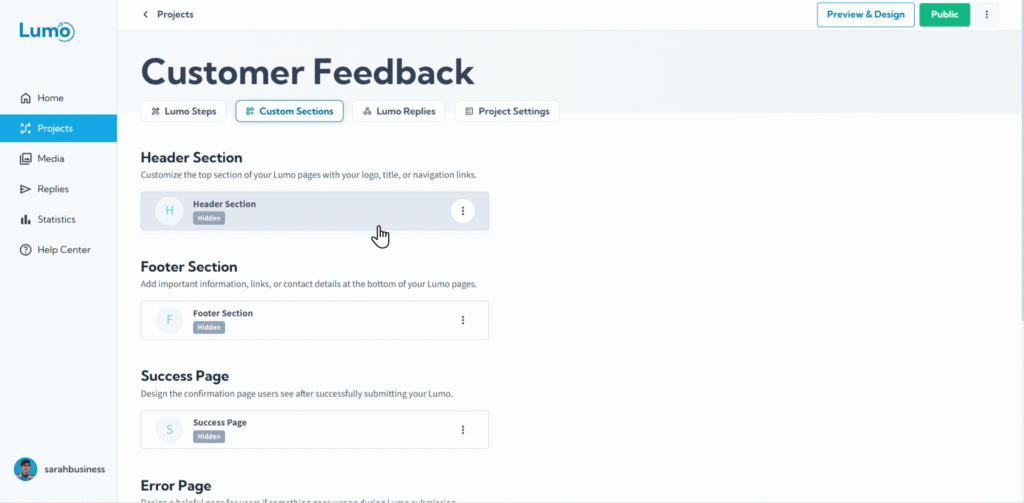
הכותרת של ה-Lumo שלכם היא לעיתים קרובות הדבר הראשון שהמשתמשים שלכם רואים, מה שהופך אותה לאלמנט מיתוג עוצמתי ולנקודת ניווט עקבית. היא מאפשרת לכם להציג את הלוגו שלכם, כותרת ברורה ואפילו קישור בולט, ומספקת מראה מלוטש ומקצועי בכל שלבי הטופס הדיגיטלי.
מדריך זה ילווה אתכם כיצד להוסיף ולהגדיר כותרת מותאמת אישית לפרויקט ה-Lumo שלכם.
מהי כותרת פרויקט?
כותרת פרויקט היא אזור ייעודי שמופיע בראש כל שלב ב-Lumo שלכם. היא בדרך כלל מכילה אלמנטי מיתוג (כמו לוגו או כותרת) ויכולה לכלול כפתור ניווט. היא מספקת זהות ויזואלית עקבית לאורך מסע המשתמש בטופס שלכם.
שלב אחר שלב: הוספה והגדרה של כותרת הפרויקט
הוסיפו את אלמנטי הכותרת: הכותרת בדרך כלל תומכת באלמנטי תוכן ספציפיים עם מיקומים קבועים. לעיתים קרובות תוכלו לבחור להוסיף:
לוגו: תמונה המייצגת את המותג שלכם.
- לחצו כדי להעלות תמונה מהמכשיר שלכם או לבחור אחת מספריית המדיה.
- תוכלו גם להתאים את גודלה כך שתתאים לשטח הכותרת.
כפתור קישור: כפתור אופציונלי שמופיע בכותרת, בדרך כלל מקשר לאתר הראשי שלכם או לדף ספציפי.
- הגדירו את הטקסט שלו ואת כתובת ה-URL של היעד.
- התאימו את גודלו.
עצבו את מראה הכותרת: מעבר לתוכן, תוכלו להתאים אישית את מראה הכותרת:
גובה כותרת: התאימו את הגודל האנכי של אזור הכותרת.
- זה עוזר לשלוט בכמה מקום הכותרת תופסת בדף.
צבע רקע: הגדירו צבע רקע מותאם אישית לכותרת.
בעוד שלאלמנטים בתוך הכותרת יש מיקומים קבועים, שחקו עם שילובים של לוגו, כותרת וצבעי רקע כדי להשיג מראה מאוזן וממותג. עקביות עם זהות המותג הכללית שלכם היא המפתח!
שמירת השינויים שלכם
כל השינויים בכותרת הפרויקט הם חלק מהגדרות הפרויקט הכלליות. זכרו לשמור ידנית את השינויים לאחר הגדרת הכותרת. חפשו את כפתור "Save" בעורך ולחצו עליו.
הכותרת מופיעה בכל שלבי ה-Lumo שלכם. כל שינוי שתשמרו כאן ישתקף בכל הטופס. אם תנסו לנווט מחוץ לעורך ללא שמירה, LumoPages תזכיר לכם לשמור את העבודה — קריטי אם ה-Lumo שלכם כרגע פעיל!
כותרת פרויקט מעוצבת היטב מספקת נוכחות מותג חזקה ותחושה מקצועית ל-Lumo שלכם. זהו אלמנט מפתח ביצירת חוויית משתמש מלוטשת מהרגע שמישהו פותח את הטופס שלכם. בהמשך, נבחן כיצד להגדיר את כותרת התחתית של הפרויקט.