אזורים מותאמים אישית גלובליים
התאמה אישית של טקסט הכפתור
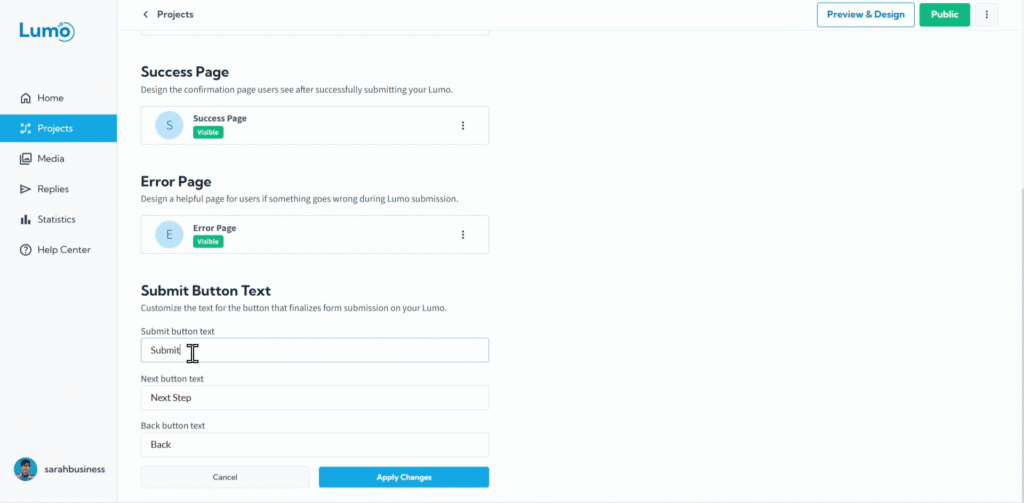
רוצים להפוך את כפתורי "Submit", "Next" ו-"Back" שלכם לבאמת שלכם? LumoPages נותן לכם את הכוח להתאים אישית את הטקסט על כפתורי מערכת קריטיים אלה, ולהבטיח שהם תואמים בדיוק לטון של ה-Lumo שלכם ומנחים את המשתמשים שלכם בצורה מדויקת.
מהו טקסט כפתור מותאם אישית?
טקסט כפתור מותאם אישית הוא הניסוח הספציפי שמופיע ישירות על הכפתור. זה מה שהמשתמשים קוראים כדי להבין את מטרת הכפתור, ומשמש כהוראה קטנה או קריאה ישירה לפעולה.
שלב אחר שלב: התאמת טקסט כפתור
אתרו התאמת כפתורי מערכת: גללו לתחתית דף "Custom Sections". תמצאו שדה קלט שמאפשר לכם להתאים אישית את הטקסט לכפתורי המערכת של הפרויקט:
- Submit button: שנו את הטקסט לכפתור השליחה הסופי (למשל "Complete Feedback").
- Next button: התאימו אישית את הטקסט למעבר לשלב הבא (למשל "Continue", "Proceed").
- Back button: התאימו את הטקסט לחזרה לשלב הקודם (למשל "Go Back", "Previous Step").
הזינו את הטקסט הרצוי. הקלידו את הניסוח המדויק שאתם רוצים שיופיע על הכפתור בשדה זה. בחרו טקסט ש:
- ברור ותמציתי: מגיע ישר לעניין.
- מכוון לפעולה: מתחיל בפועל (למשל "Submit Feedback").
- רלוונטי: משקף ישירות את הפעולה שהכפתור מבצע.
טיפים לטקסט כפתור יעיל
- היו ספציפיים: במקום "Submit", נסו "Submit Your Feedback" או "Send My Inquiry".
- שמרו על קצרה: שאפו ל-2-5 מילים. יותר מדי טקסט יכול להקשות על קריאת הכפתור ולהפחית את הרצון ללחוץ.
- התאימו לקול המותג: אם המותג שלכם שובב, גם טקסט הכפתור יכול להיות (למשל "Let's Get Baking!").
- שקלו את תועלת המשתמש: מה המשתמש מרוויח מלחיצה? "Get My Free Ebook" מפתה יותר מ-"Download".
שמירת השינויים
לאחר שהתאמתם את טקסט הכפתור ושיניתם הגדרות כפתור אחרות (כמו גודל או יישור), זכרו לשמור את השינויים באופן ידני ל-Lumo שלכם. חפשו את כפתור "Apply Changes" באזור העריכה.
התאמת טקסט הכפתור היא פרט קטן שעושה הבדל גדול באופן שבו משתמשים מתקשרים עם ה-Lumos שלכם. על ידי הפיכת קריאות הפעולה לברורות ומשכנעות, אתם מנחים את המשתמשים ביעילות ומשפרים את חווייתם הכוללת.