פתרון בעיות
קוד ה-Embed שלי לא עובד (פתרון בעיות Embed)
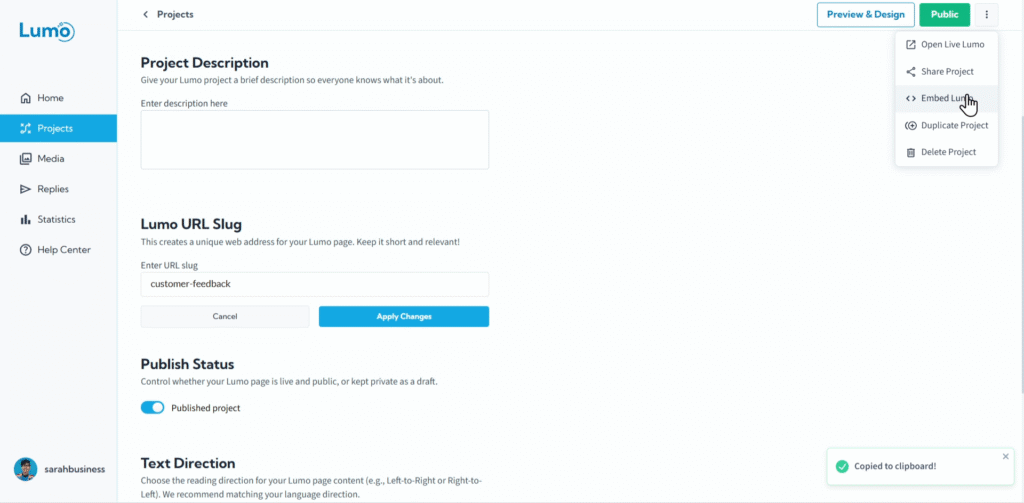
הטמעת ה-Lumo שלכם ישירות באתר האינטרנט שלכם היא דרך עוצמתית לספק חוויית משתמש חלקה. עם זאת, לפעמים, לאחר הדבקת קוד ההטמעה, ה-Lumo שלכם עלול לא להופיע כראוי, או בכלל. אל דאגה, זה תרחיש פתרון בעיות נפוץ, ולעיתים קרובות הפתרון פשוט למדי!
מדריך זה ילווה אתכם בסיבות הנפוצות ביותר לכך שקוד ההטמעה של ה-Lumo שלכם לא עובד וכיצד לפתור אותן.
סיבות נפוצות לכך שקוד ההטמעה לא עובד
אלה הגורמים הטיפוסיים ביותר מאחורי Lumo מוטמע שלא עובד:
בעיה 1: ה-Lumo שלכם אינו Public
זו הסיבה מספר אחת לכך ש-Lumo מוטמע לא יופיע. קוד הטמעה יציג רק Lumo שפורסם באופן פעיל ומוגדר לסטטוס "Public".
פתרון:
- בדיקת סטטוס פרסום: עברו לפרויקט ה-Lumo שלכם בעורך LumoPages.
- גישה ל-"Project Settings": לחצו על לשונית "Project Settings".
- הגדרה ל-"Public": ודאו ש-"Publish Status" מוגדר ל-"Public".
- אימות שדות: אשרו של-Lumo שלכם יש לפחות שלב גלוי אחד המכיל לפחות בלוק שדה אחד למילוי (למשל שדה Text, Rating וכו'). אם לא, הוסיפו אחד או בטלו הסתרה של שלב שמכיל.
- שמירה: לחצו על כפתור "Save" עבור ה-Lumo שלכם.
בעיה 2: מיקום שגוי של קוד ההטמעה או מצב HTML
עורכי אתרים לעיתים קרובות כוללים מצבים שונים לתוכן. הדבקת קוד HTML במצב עורך ויזואלי תציג רק את הקוד כטקסט, ולא תרנדר את ה-Lumo.
פתרון:
- מעבר לתצוגת HTML/Text/Code: בעת עריכת דף האתר שלכם, מצאו את האפשרות לעבור ממצב "Visual" או "WYSIWYG" למצב "Text", "HTML", "Code Editor" או "Source".
- שימוש בבלוק Custom HTML: בוני אתרים מודרניים רבים (כמו WordPress Gutenberg, Squarespace, Wix) מציעים בלוקים ייעודיים של "Custom HTML" או "Embed". השתמשו בבלוקים אלה כדי להדביק את הקוד שלכם.
- הדבקה מדויקת: ודאו שאתם מעתיקים את כל קוד ההטמעה מ-LumoPages ומדביקים אותו בדיוק במקום שבו אתם רוצים שה-Lumo יופיע בדף. אל תשנו את הקוד.
בעיה 3: התנגשויות עם קוד קיים באתר (מתקדם)
פחות נפוץ, אבל לפעמים ה-CSS או ה-JavaScript הקיים באתר שלכם עלול להפריע ל-Lumo המוטמע.
פתרון:
- בדיקת Console בדפדפן: פתחו את כלי המפתחים של הדפדפן (בדרך כלל F12 או לחיצה ימנית -> Inspect Element, ואז עברו ללשונית "Console"). חפשו שגיאות JavaScript.
- בידוד הבעיה: נסו להטמיע את ה-Lumo בדף ריק לחלוטין באתר שלכם, או בקובץ HTML בדיקה פשוט, כדי לראות אם הוא עובד שם. אם כן, ההתנגשות היא עם תוכן אחר בדף המקורי שלכם.
- יצירת קשר עם התמיכה: אם אתם חושדים בהתנגשות קוד ואינכם מרגישים בנוח עם פיתוח אתרים, עדיף לפנות לתמיכת LumoPages עם כתובת האתר והפרטים שלכם, או להתייעץ עם מפתח אתרים.
בעיה 4: בעיות מטמון (Caching)
לפעמים, האתר או הדפדפן שלכם עלולים להציג גרסה ישנה יותר של הדף.
פתרון:
- ניקוי מטמון דפדפן: נסו לנקות את המטמון והעוגיות של הדפדפן, או פתחו את הדף בחלון דפדפן בסתר/פרטי.
- ניקוי מטמון אתר: אם האתר שלכם משתמש בתוסף מטמון (למשל תוספי מטמון של WordPress), נקו את המטמון שלו.
- רענון קשיח: בצעו "רענון קשיח" בדף האתר שלכם (Ctrl+F5 או Cmd+Shift+R).
תהליך פתרון בעיות כללי
- אימות סטטוס Lumo: תמיד התחילו בוידוא שה-Lumo שלכם הוא Public ויש לו שדות למילוי בתוך עורך LumoPages עצמו. שמרו כל שינוי.
- העתקה נכונה: העתיקו מחדש את קוד ההטמעה ישירות מ-LumoPages כדי לוודא שיש לכם את הגרסה העדכנית והנכונה.
- הדבקה במצב קוד: ודאו בוודאות שאתם מדביקים את הקוד בעורך HTML/קוד של האתר, לא בעורך הוויזואלי.
- בדיקה: צפו בדף האתר שלכם.
על ידי בדיקה שיטתית של נקודות נפוצות אלה, תוכלו לפתור את רוב הבעיות הקשורות להטמעת ה-Lumo שלכם באתר. אם הבעיות נמשכות, מרכז העזרה של LumoPages וצוות התמיכה תמיד מוכנים לסייע!