פתרון בעיות
בעיות נפוצות בפרסום ה-Lumo שלך
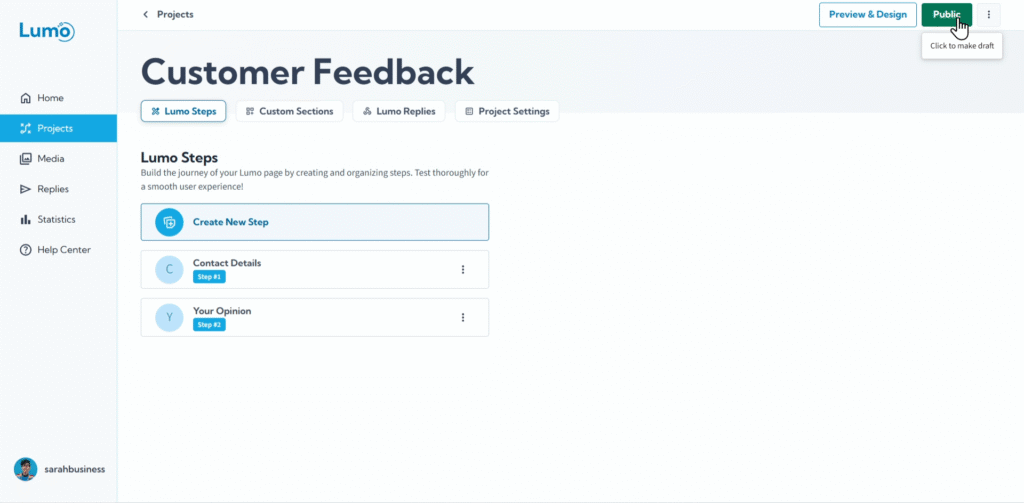
השקעתם מאמץ בבנייה ועיצוב ה-Lumo שלכם, ועכשיו אתם מוכנים לפרסם אותו ולהגיע לקהל. עם זאת, לפעמים ייתכן שתיתקלו בבעיה שמונעת מה-Lumo להיות חי או להישאר ציבורי. הבנת בעיות נפוצות אלה והפתרונות שלהן יכולה לחסוך זמן ותסכול.
מדריך זה ילווה אתכם בבעיות הנפוצות ביותר שמשתמשים נתקלים בהן בעת פרסום Lumo וכיצד לפתור אותן.
מדוע ה-Lumo שלי לא יכול להיות מפורסם או להישאר ציבורי?
הסיבה הנפוצה ביותר ש-Lumo לא יכול להיות מוגדר ל-"Public" או חוזר לסטטוס "Draft" קשורה למבנה התוכן. ל-LumoPages יש דרישה מרכזית כדי להבטיח שרק טפסים פונקציונליים מפורסמים:
- דרישה: ה-Lumo שלכם חייב להכיל לפחות stage גלוי אחד שכולל לפחות Field Block אחד (כמו שדה Text, Rating, Dropdown וכו') שמשתמשים יכולים למלא.
כלל זה קיים כדי למנוע פרסום טפסים ריקים או טפסים שהם תוכן סטטי בלבד אך מיועדים לאיסוף נתונים.
בעיות פרסום נפוצות והפתרונות שלהן
בעיה 1: "Cannot Publish: No Fillable Fields Found"
זו ההודעה הנפוצה ביותר שייתכן שתיתקלו בה בעת ניסיון להגדיר את ה-Lumo ל-"Public".
פתרון:
פרסמו Stages: ודאו שלפחות stage אחד המכיל Field Block מוגדר ל-"Published" (לא "Hidden").
בעיה 2: ה-Lumo הציבורי שלי חזר פתאום לסטטוס "Draft"
זה יכול לבלבל אם לא שיניתם את הסטטוס ידנית.
בעיה: זה קורה כש-Lumo היה בעבר "Public", אך ביצעתם שינויים שהובילו לכך שאין stages גלויים עם field blocks שניתן למלא. זה יכול לקרות אם:
- מחקתם את כל ה-Field Blocks מכל ה-stages הגלויים.
- שיניתם את כל ה-stages המכילים Field Blocks מ-"Published" ל-"Hidden".
- מחקתם את כל ה-stages שהכילו Field Blocks.
פתרון:
- העריכו מחדש את ה-Lumo: קבעו אם אתם באמת רוצים לאסוף נתונים.
- הוסיפו/חשפו Field Blocks: הוסיפו Field Blocks חדשים ל-stage גלוי, או שנו את הסטטוס של stage קיים עם Field Blocks מ-"Hidden" ל-"Published".
- שמרו מחדש כ-Public: ברגע שלפחות Field Block אחד קיים ב-stage גלוי, חזרו ל-"Project Settings" ונסו להגדיר את "Publish Status" ל-"Public" שוב, ולאחר מכן שמרו.
בעיה 3: "Project Name" או "Slug" חסר/לא תקין
למרות שפחות נפוץ לפרסום לאחר ההגדרה הראשונית, הגדרות יסוד אלה לפעמים יכולות לגרום לבעיות.
פתרון:
- בדקו Project Settings: נווטו ל-"Project Settings".
- ספקו שם: ודאו ששדה "Project Name" אינו ריק.
- אמתו Slug: ודאו ששדה "Slug" מכיל מזהה תקין וייחודי (אותיות קטנות, מספרים ומקפים בלבד). אם הוא ריק, הקלידו אחד.
- שמרו: שמרו את הגדרות הפרויקט.
טיפים כלליים לפתרון בעיות פרסום
- Preview First: תמיד השתמשו בתכונת "Preview Your Lumo" כדי לבדוק ביסודיות את המראה והפונקציונליות של הטופס לפני ניסיון לפרסם.
- סקירת סטטוס Stages: בדקו שוב שכל ה-stages המיועדים מוגדרים ל-"Published" בהגדרות הבודדות שלהם.
- בדיקת Stages ריקים: ודאו שה-Lumo לא מנסה לפרסם זרימה שמובילה ל-stage ריק או מוסתר.
- שמרו את העבודה: תמיד שמרו את ה-Lumo ידנית לאחר ביצוע שינויים בעורך.
על ידי הבנת בעיות פרסום נפוצות אלה והפתרונות הפשוטים שלהן, תוכלו להבטיח שה-Lumos שלכם תמיד חיים ומוכנים לאסוף נתונים בעלי ערך מהקהל. אם אתם נתקלים בבעיות מתמשכות, זכרו לפנות ל-Help Center של LumoPages או ליצור קשר עם תמיכת לקוחות לקבלת סיוע.